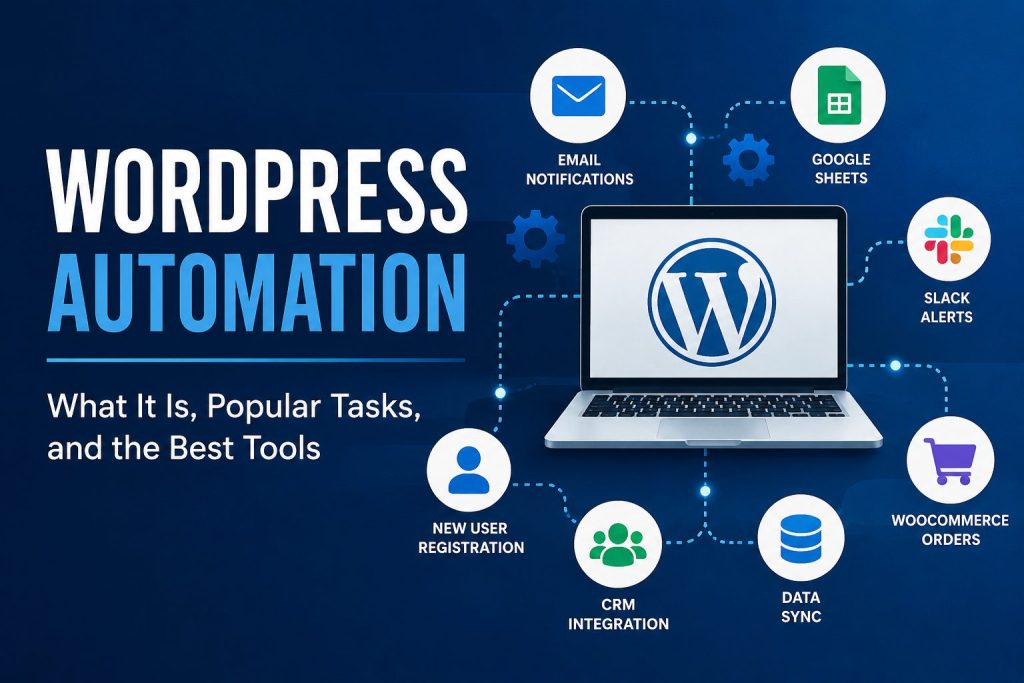
Managing a WordPress website often involves many small, repetitive tasks. You may need to send emails after form submissions, copy customer information into a CRM, publish scheduled content, create user accounts, update order statuses, generate backups, or notify a team about important events. Completing these tasks manually takes time and increases the possibility of mistakes.
WordPress automation solves this problem by allowing software to perform routine actions automatically. It can reduce administrative work, improve response times, create more consistent processes, and help a website handle a growing number of customers without requiring an equally large increase in staff.
What Is WordPress Automation?
WordPress automation is the process of configuring a website to perform an action automatically when a particular event occurs. Most automation workflows use a simple trigger-and-action structure.
A trigger is an event that starts the workflow. For example, a visitor submits a form, a customer purchases a product, a user completes a course, or an administrator publishes a post.
An action is what happens after the trigger. The website might send an email, create a CRM contact, assign a user role, add information to a spreadsheet, generate a task, or send data to another application.
A simple automation may contain one trigger and one action:
When a visitor submits the contact form, send a notification to the sales team.
More advanced workflows can include several actions and conditions:
When a customer purchases a particular product, add the customer to an email list, assign a membership level, create an invoice, and notify the account manager.
Automation can happen entirely inside WordPress or connect WordPress with external services such as email marketing platforms, CRMs, spreadsheets, accounting systems, project management tools, and messaging applications.
Why Automate a WordPress Website?
The main benefit of automation is time savings. A task that takes only two minutes may not appear significant, but repeating it hundreds of times each month creates a substantial workload. Automation allows website owners and employees to focus on customer service, content creation, marketing, and business development instead of routine data entry.
Automation also improves consistency. A properly configured workflow follows the same process every time. It does not forget to send a message, update a record, or assign the correct user role.
Another advantage is faster communication. Customers can receive confirmations, instructions, invoices, download links, or onboarding information immediately, even outside normal working hours.
Popular WordPress Automation Tasks
1. Form Submission Automation
Contact forms, quote requests, surveys, registration forms, and support forms are common starting points for automation. After a form is submitted, WordPress can send a confirmation email, notify an employee, save the information in Google Sheets, create a CRM contact, or open a support ticket.
2. Email Marketing Automation
New users, customers, and subscribers can automatically be added to the appropriate mailing list. They can then receive welcome messages, onboarding sequences, abandoned-cart reminders, educational content, or follow-up emails based on their activity.
3. WooCommerce Automation
Online stores offer many opportunities for automation. Workflows can react to new orders, failed payments, completed purchases, refunds, subscriptions, low stock, or abandoned carts. A store can notify staff, update external records, send personalized messages, issue coupons, or add customers to marketing campaigns.
4. User Registration and Membership Management
WordPress can automatically create accounts, assign roles, grant access to protected content, enroll users in courses, or remove access when a subscription expires. This is particularly useful for membership websites, online communities, and learning platforms.
5. Content Publishing and Distribution
Content automation can schedule posts, distribute new articles to social networks, send newsletters, notify subscribers, or create internal editorial tasks. It can also connect WordPress to external content databases and import information according to a schedule.
6. Lead Management and CRM Integration
When someone requests a consultation or downloads a resource, their information can be sent directly to a CRM. The automation may assign the lead to a salesperson, add a tag, calculate a lead score, schedule a follow-up, and notify the responsible team member.
7. Notifications and Team Communication
Important website events can generate notifications in Slack, Microsoft Teams, email, or another communication platform. For example, a team may be notified about a large order, a new application, a failed payment, a technical error, or a customer cancellation.
8. Maintenance and Security
Automation can help schedule backups, monitor uptime, scan for security problems, optimize databases, remove spam, and report failed updates. However, updates should be handled carefully because automatic plugin or theme updates can sometimes cause compatibility problems.
Popular WordPress Automation Tools
Uncanny Automator
Uncanny Automator is a popular no-code automation plugin that connects WordPress plugins, websites, and external applications. Its workflows are called recipes. It is especially useful for membership websites, WooCommerce stores, learning management systems, forms, and community platforms.
AutomatorWP
AutomatorWP is a flexible open-source automation plugin based on triggers and actions. It supports many WordPress plugins and allows website owners to build workflows around user activity, purchases, forms, courses, memberships, and other events.
WP Webhooks
WP Webhooks is designed for connecting WordPress with other websites, applications, APIs, and automation services. It is particularly useful when a project requires webhooks or custom data exchange. Compared with simpler automation plugins, it may provide more flexibility for developers and technically experienced users.
OttoKit
OttoKit, previously known as SureTriggers, connects WordPress plugins with external cloud applications. It provides a visual workflow builder and can be useful when a business wants to automate processes across several websites and online services.
Zapier
Zapier is a cloud automation platform rather than a WordPress-only plugin. It connects WordPress forms, e-commerce systems, and webhooks with a large collection of external applications. It is convenient for connecting WordPress to CRMs, spreadsheets, email services, calendars, and project management tools.
Make
Make is another cloud automation platform. It offers a visual scenario builder that is well suited to workflows containing multiple steps, conditions, filters, and data transformations. It can be more flexible than basic trigger-and-action tools, although complex scenarios require additional time to understand and maintain.
WordPress Cron and Custom Development
Developers can create custom automation using WordPress hooks, the REST API, webhooks, WP-Cron, server cron jobs, and custom plugins. This approach requires programming but provides complete control. It is often the best option when a workflow includes unusual business rules, large amounts of data, strict performance requirements, or integration with a private API.
How to Choose an Automation Tool
Start by clearly defining the trigger, required actions, data that must be transferred, and expected number of workflow executions. Then check whether the automation tool directly supports the plugins and external applications used by the website.
Consider pricing, execution limits, error logs, retry options, security, and ease of maintenance. A free plugin may be sufficient for a simple workflow, while a business-critical process may require a paid platform or custom development.
Avoid automating a poorly defined process. First make sure the manual workflow is logical and reliable. Then automate it gradually, test each step, and keep records of failed executions. Sensitive information should only be transferred through trusted services and secure connections.